Deploy OpenNHP Binaries
OpenNHP is cross-platform software that is easy to deploy.
1. OpenNHP Component Overview
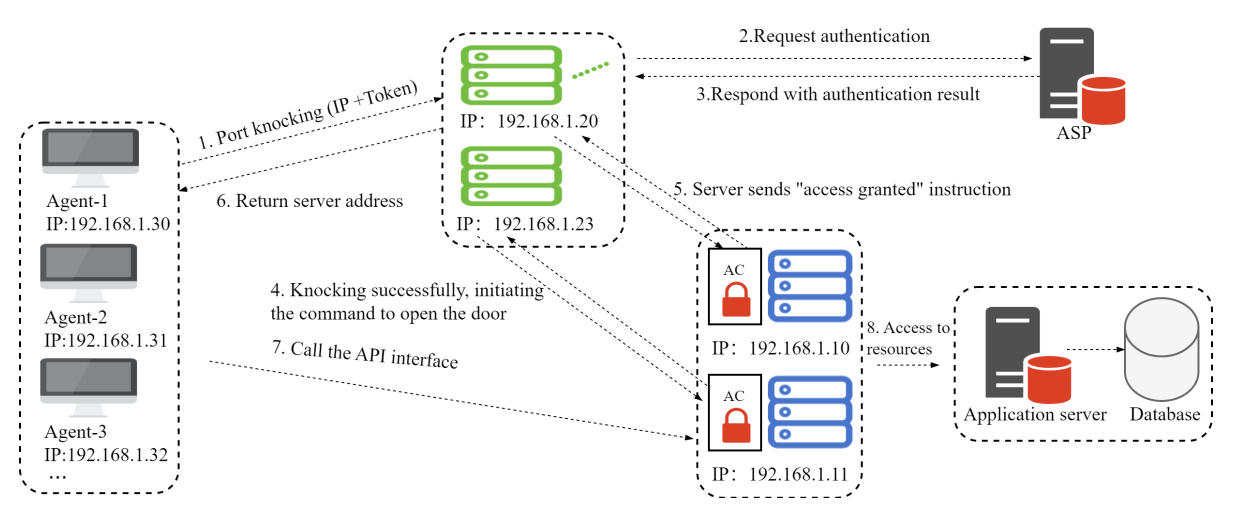
After following the build steps from the previous chapter, the build output is placed in the release directory. This directory contains three subdirectories for the three core OpenNHP components: nhp-agent, nhp-server, and nhp-ac.
nhp-agent (Agent): The module that initiates knock requests. Knock requests carry the identity and device information of the data accessor. Typically installed on end-user devices.
nhp-server (Server): The module that processes and validates knock requests. Usually runs as a server program. Its functions include validating knock requests, interacting with external authorization service providers for authentication, and controlling NHP-AC to open access.
nhp-ac (Access Controller): The access control enforcement module. Usually runs as a server program. This module enforces a default “deny all” security policy and ensures the protected resources remain invisible on the network. Typically located on the same host as the protected resources. Responsible for opening access to authorized NHP agents and closing access to agents that have lost authorization, executing pass-through actions based on parameters returned by the NHP server.
2. Development/Test Environment Setup
2.1 Environment: Windows/macOS Host + Linux Virtual Machines
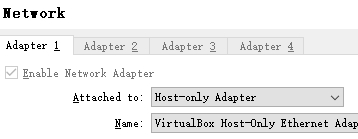
If your development host runs Windows or macOS, you can create a simple OpenNHP test environment by installing a virtualization environment (such as VirtualBox) and creating two Linux virtual machines. When creating virtual machines, set the network adapter option to "Host-only Adapter" (as shown below), which places the VM IPs in the same network segment as the development host.
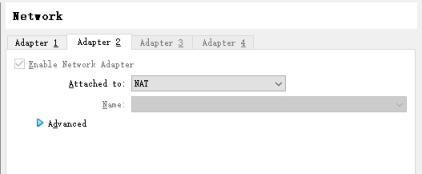
Tip: If you need the VM to also have internet access, you can add an additional "NAT" network adapter:
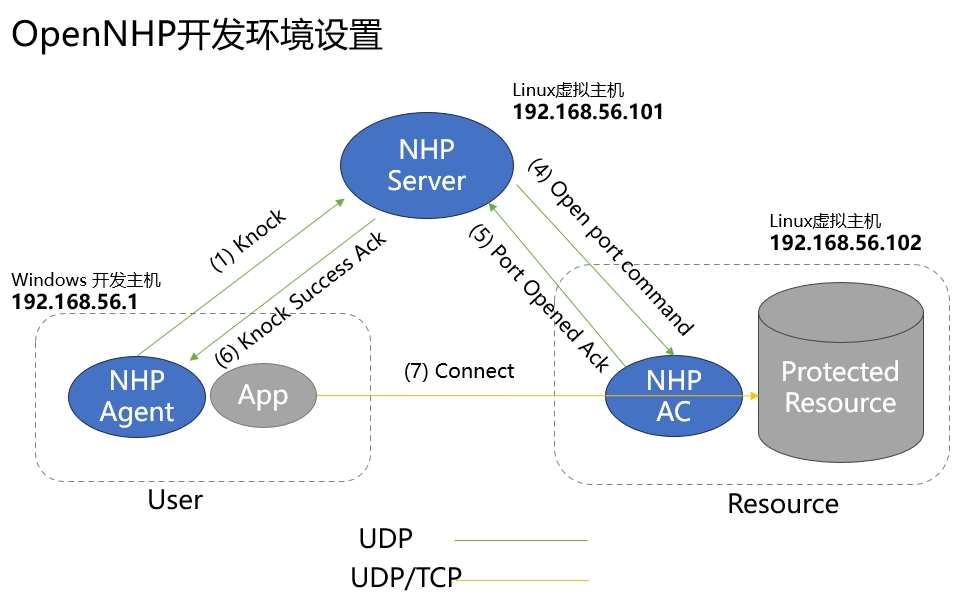
With this setup, the three NHP components are deployed as follows:
- [nhp-server] Runs on a Linux VM with IP address 192.168.56.101
- [nhp-ac] Runs on a Linux VM with IP address 192.168.56.102
- [nhp-agent] Runs on the Windows/macOS development host with IP address 192.168.56.1
2.2 Network Topology and Configuration
| Server Name | IP Address | Configuration |
|---|---|---|
| NHP-Server | 192.168.56.101 | Public Key: WqJxe+Z4+wLen3VRgZx6YnbjvJFmptz99zkONCt/7gc= Private Key: eHdyRHKJy/YZJsResCt5XTAZgtcwvLpSXAiZ8DBc0V4= Hostname: localhost ListenPort: 62206 aspId: example |
| NHP-AC | 192.168.56.102 | Public Key: Fr5jzZDVpNh5m9AcBDMtHGmbCAczHyPegT8IxQ3XAzE= Private Key: +B0RLGbe+nknJBZ0Fjt7kCBWfSTUttbUqkGteLfIp30= ACId: testAC-1 Protected resource resId: test |
| NHP-Agent | 192.168.56.1 | Public Key: WnJAolo88/q0x2VdLQYdmZNtKjwG2ocBd1Ozj41AKlo= Private Key: +Jnee2lP6Kn47qzSaqwSmWxORsBkkCV6YHsRqXCegVo= UserId: agent-0 |
Note: Each component has corresponding configuration files that must be configured correctly for successful startup. See the “Configuration Files” sections below for each component.
Tip: Starting from version 0.3.3, most fields in configuration files support dynamic updates. See the comments in each configuration file for details.
2.3 NHP-Server Configuration and Deployment
2.3.1 NHP-Server System Requirements
- Linux server or Windows
2.3.2 Running NHP-Server
Copy the nhp-server directory from the release folder to the target machine. Configure the toml files in the etc directory (see next section for detailed parameters), then run nhp-serverd run.
Linux:
nohup ./nhp-serverd run 2>&1 &Windows:
nhp-serverd.exe run
[Optional] Hide UDP port exposure by running iptables_default.sh
2.3.3 NHP-Server Configuration Files
- Base configuration: config.toml
- Access Controller peer list: ac.toml
- Agent peer list: agent.toml
- HTTP service configuration: http.toml
- Server plugin configuration: resource.toml
- Source IP mapping list: srcip.toml
2.4 NHP-AC Configuration and Deployment
2.4.1 NHP-AC System Requirements
Linux server with kernel support for ipset. Check ipset support with:
lsmod | grep ip_set
2.4.2 Running NHP-AC
Copy the nhp-ac directory from the release folder to the target machine. Configure the toml files in the etc directory (see next section for detailed parameters). Run iptables_default.sh to add firewall rules—at this point, external connections will be blocked. Then run nhp-acd run.
Note: Both nhp-acd and iptables_default.sh require root privileges.
Linux:
 su
 ./iptables_default.sh
 nohup ./nhp-acd run 2>&1 &
To revert the iptables changes made by iptables_default.sh, run:
iptables -F
2.4.3 NHP-AC Configuration Files
- Base configuration: config.toml
- Server peer list: server.toml
2.5 NHP-Agent Configuration and Deployment
2.5.1 NHP-Agent System Requirements
- All platforms: Windows, Linux, macOS, Android, iOS
2.5.2 Running NHP-Agent
Copy the nhp-agent directory from the release folder to the target machine. Configure the toml files in the etc directory (see next section for detailed parameters), then run nhp-agentd run.
Linux:
nohup ./nhp-agentd run 2>&1 &Windows:
nhp-agentd.exe run
2.5.3 NHP-Agent Configuration Files
- Base configuration: config.toml
- Knock target configuration: resource.toml
- Server peer list: server.toml
2.6 Testing NHP Network Stealth
To verify NHP network stealth, perform an nmap scan (using port 80 as an example) from the nhp-agent host (IP: 192.168.56.1) against the nhp-ac host (IP: 192.168.56.102). You can also perform scans from another VM (simulating an attacker) to observe the stealth effect.
| Test Case | Command | Purpose | Expected Result |
|---|---|---|---|
| nhp-agent not running | nmap -sS -p 80 192.168.56.102 | Test AC stealth from Agent | 80/tcp filtered |
| nhp-agent running | nmap -sS -p 80 192.168.56.102 | Test AC access for Agent | 80/tcp open |
| nhp-agent running | nmap -sS -p 80 192.168.56.102 | Test AC stealth from attacker | 80/tcp filtered |
3. Docker Deployment (Quick Method)
For rapid setup and testing, OpenNHP provides a Docker-based deployment option.
3.1 Prerequisites
3.2 Quick Start Commands
# Clone the repository
git clone https://github.com/OpenNHP/opennhp.git
cd opennhp

# Build the base image
cd docker
docker build --no-cache -t opennhp-base:latest -f Dockerfile.base ../..

# Start all services
docker compose up -d
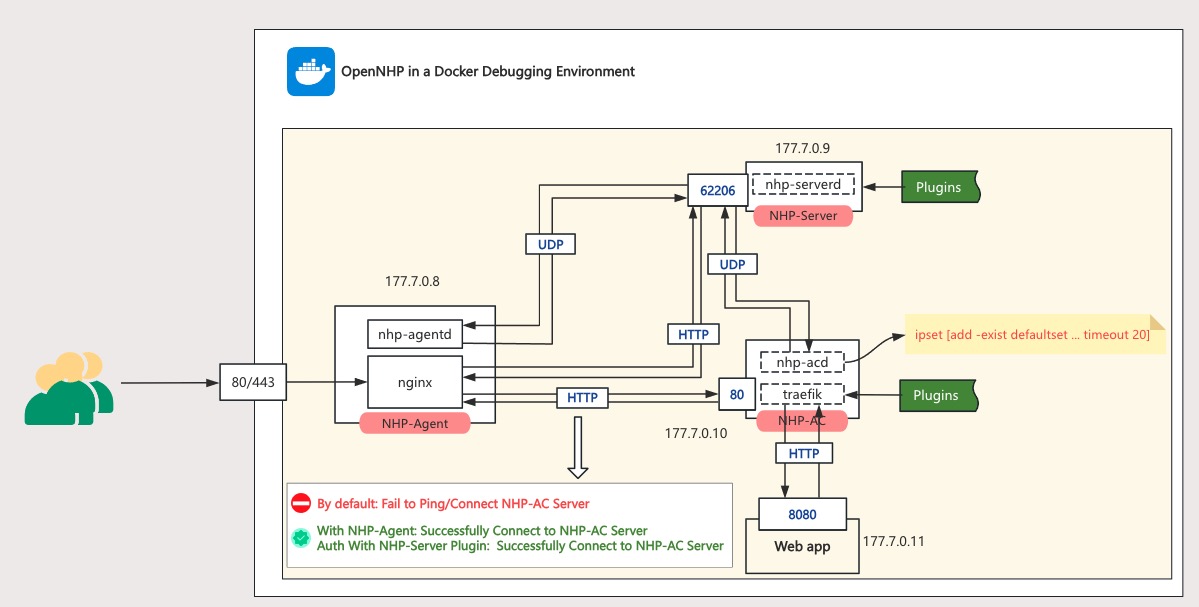
3.3 Docker Network Topology
| Container | IP | Description |
|---|---|---|
| NHP-Agent | 177.7.0.8 | Runs nhp-agentd & nginx |
| NHP-Server | 177.7.0.9 | Runs nhp-serverd on port 62206 |
| NHP-AC | 177.7.0.10 | Runs nhp-acd & Traefik |
| Web App | 177.7.0.11 | Protected application on port 8080 |
For detailed Docker testing scenarios and verification steps, see the NHP Quick Start Guide.
4. Production Deployment Considerations
4.1 Architecture Overview
For high-availability deployments, consider:
4.2 Security Hardening
- Key Management
- Generate unique keys for each component using
nhp-serverd keygen,nhp-acd keygen,nhp-agentd keygen - Never reuse keys across environments
- Rotate keys periodically and update peer configuration files
- Generate unique keys for each component using
- TLS Configuration
- Enable HTTPS in
http.tomlwith valid TLS certificates - Configure
TLSCertFileandTLSKeyFilepaths - Use certificates from a trusted CA for production
- Enable HTTPS in
- Network Security
- Run
iptables_default.shbefore starting NHP-AC to ensure deny-all policy - Consider eBPF/XDP mode (
FilterMode = 1) for high-performance packet filtering - Restrict management interfaces to internal networks only
- Run
4.3 Deployment Checklist
Pre-deployment:
- Keys generated for all components
- Peer public keys exchanged and configured
- Configuration files validated
- TLS certificates in place (for HTTPS)
- System time synchronized across all hosts
Post-deployment:
- Verify NHP-Server is listening on UDP 62206
- Verify NHP-AC iptables rules are active (
iptables -L) - Test knock sequence from NHP-Agent
- Verify stealth with nmap from unauthorized host
- Check log files for errors
4.4 Configuration Parameters Reference
Key configuration parameters across components:
| Parameter | Component | Description |
|---|---|---|
PrivateKeyBase64 | All | Base64-encoded private key (static, requires restart) |
ListenPort | Server | UDP listening port, default 62206 (static) |
LogLevel | All | 0=silent, 1=error, 2=info, 3=audit, 4=debug, 5=trace |
DefaultCipherScheme | All | 0=Curve25519, 1=SM2 |
FilterMode | AC | 0=IPTables, 1=eBPF/XDP |
ExpireTime | Peer configs | Epoch timestamp when peer key expires |
Most configuration fields support dynamic updates without restart. See configuration file comments for details.
5. Logging
5.1 Log File Locations
Log files are generated in each component’s logs directory, named by date. View logs using tail:
NHP-Server logs:
tail -f release/nhp-server/logs/server-2024-03-10.logNHP-AC logs:
tail -f release/nhp-ac/logs/ac-2024-03-10.logNHP-Agent logs:
tail -f release/nhp-agent/logs/agent-2024-03-10.log
5.2 Log Format
Log format:
Timestamp CodeLocation ComponentName [LogLevel] LogMessage
Log levels:
- Error
- Critical
- Warning
- Info
- Debug
6. Troubleshooting FAQ
Q: Windows build error:
running gcc failed: exec: "gcc": executable file not found in %PATH%A: GCC compiler is not installed. Follow the GCC installation steps in the build documentation.Q: Log shows error:
NHP-AC [Critical] received stale packet from 192.168.56.101:62206, drop packetCause: The receiver requires packets to be received within 10 minutes of being sent. Fix: Synchronize system time between machines.Q: How do I adjust the access duration after authentication? How do I restrict access to specific ports? A: In the corresponding plugin module under
nhp-server/plugins/, findetc/resource.toml. This file configures resource ports, duration, ID, etc. For nhp-agent knocking, the default plugin isexample. For WeChat QR code knocking, use thewxwebplugin.Q: How do I verify configuration is working? A: Check server and AC logs. You can also run
ipset -Lon the AC to view authorized source IPs, destination ports, and durations.Q: nhp-agent knock succeeds but cannot access the resource. Possible cause: The resource target IP in the ipset record added by nhp-server to nhp-ac doesn’t match the requested resource. This can occur when the resource and nhp-ac are on the same server.
Manual ipset rule for debugging:
sudo ipset add defaultset [SourceIP],tcp:80,[ResourceIP]- SourceIP: The agent’s public IP (verify via tcpdump or ipset list)
- ResourceIP: The resource IP from
nhp-server/plugins/example/etc/resource.toml
If the IPs don’t match, knocking succeeds but access fails.
Debug with packet capture on nhp-ac:
tcpdump -i any port 80Solution: Configure the correct IP in
nhp-server/plugins/example/etc/resource.tomlunderAddr.Ip.